This plugin builds a lightweight knowledge graph from users' Obsidian notes using LLM-powered entity extraction with a simple yet expressive ontology model to provide knowledge extraction, exploration, and RAG search. Since Obsidian provides wonderful links between notes, implementing ontology model would meet users' (especially researchers') needs.
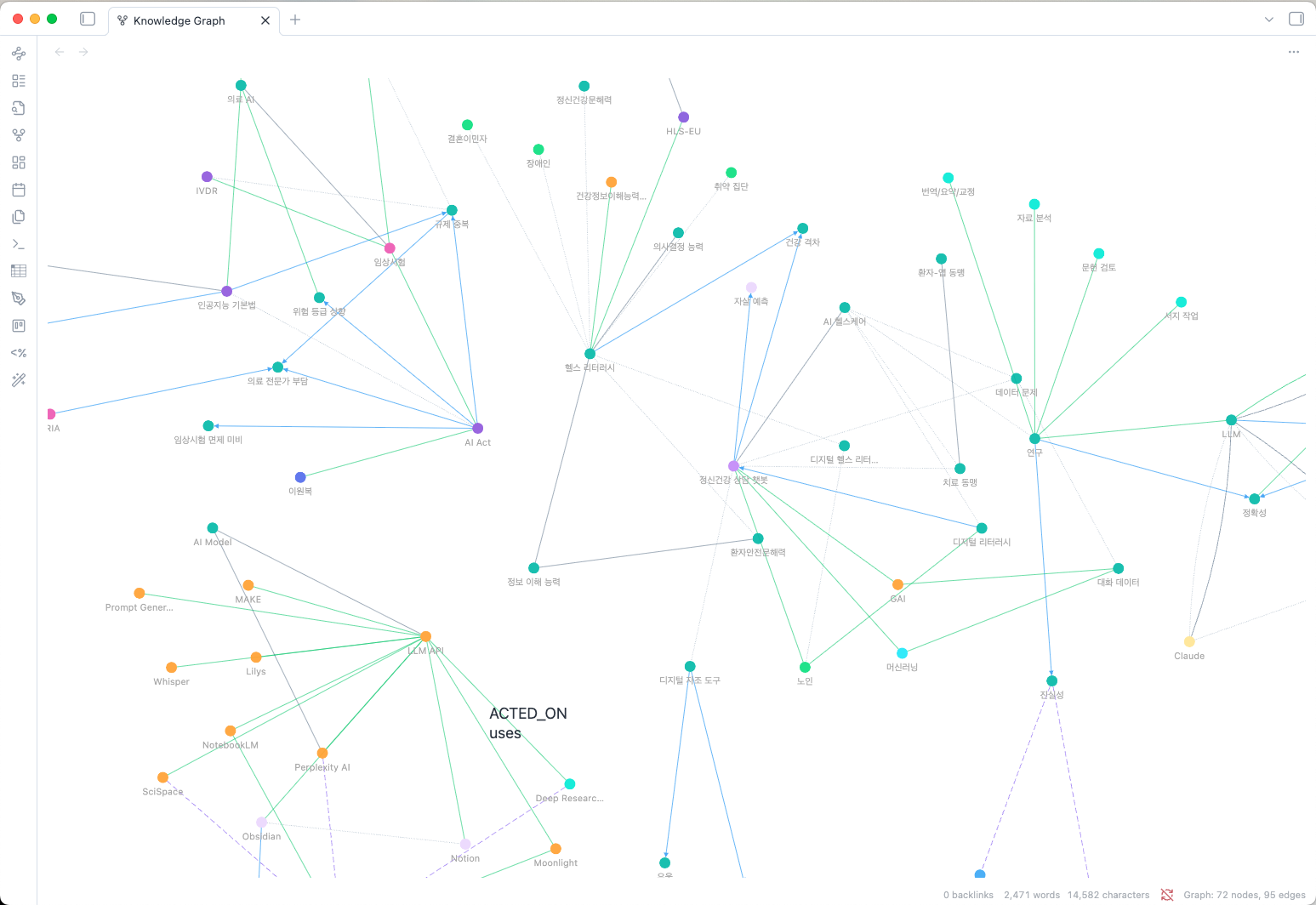
Traditional knowledge graphs often require complex schemas with dozens of relationship types, making them difficult to maintain and query. Simple Graph Builder takes a different approach:
- Flexible Node Labels: The LLM determines the most appropriate label for each entity (Person, Concept, Tool, Project, etc.) - no predefined restrictions
- Fixed Relationship Types: Only 5 universal relationship types that cover most knowledge connections
- Detail Property: Each relationship includes a
detailfield for nuanced descriptions without schema explosion
This design provides 80% of the expressiveness with 20% of the complexity, making it easy to build, query, and maintain your personal knowledge graph.
- Lightweight Ontology Model: Simple but expressive - flexible node labels + 5 fixed relationship types with detail annotations
- Smart Search: AI-powered natural language queries over your knowledge graph with multi-path exploration
- Entity Extraction: Automatically extract entities from your notes using AI (configurable extraction depth)
- Internal Link Support: Automatically processes
[[wikilinks]]to build note-to-note connections - Multiple LLM Support: Works with Claude, OpenAI, Gemini, and Ollama (local)
- Korean Language Support: Bigram Jaccard similarity for robust Korean text matching (handles particles and spacing variations)
- Interactive Graph View: Visualize your knowledge graph with fCoSE force-directed layout
- Large Graph Support: Optimized for thousands of nodes with fast rendering
- Note Neighborhood Panel: See connections for the current note in a sidebar
- Quick Access: Ribbon icon menu for common actions
- Status Bar: Real-time graph statistics display
| Command | Description |
|---|---|
Analyze current note |
Extract entities from the active note |
Search related notes |
Find notes by entity name (exact/fuzzy match) |
Smart Search (AI) |
Natural language search using LLM to explore the graph |
Open graph view |
Show the knowledge graph visualization |
Open note neighborhood panel |
Show current note's connections in sidebar |
Remove current note from graph |
Remove active note from the graph |
Clear all graph data |
Reset the entire graph |
The LLM determines appropriate labels for each entity:
- Person, Organization, Team - People and groups
- Concept, Theory, Method, Technique - Ideas and approaches
- Project, Product, System - Work items
- Tool, Library, Framework, Software - Technical tools
- Event, Meeting, Conference - Occurrences
- Document, Paper, Book - Written works
- Place, Location - Geography
- Any other appropriate label
| Type | Meaning | Example Details |
|---|---|---|
HAS_PART |
Parent/Child, Inclusion | "member of", "contains", "subtopic" |
LEADS_TO |
Causality, Sequence, Dependency | "causes", "blocks", "enables" |
ACTED_ON |
Creation, Modification, Usage | "created", "maintains", "uses" |
CITES |
Reference, Source, Evidence | "references", "based on", "quotes" |
RELATED_TO |
Loose association, Similarity | "similar to", "see also", "wikilink" |
Click the graph icon in the left ribbon to access:
- Analyze current note
- Open graph view
Shows real-time graph statistics with node counts by label.
A sidebar panel showing:
- Extracted Nodes: Entities from the current note with label badges
- Connected Nodes: Grouped by label (Person, Concept, Tool, etc.)
- Relationships: Shows relationship type and detail for each connection
- Click nodes to see source notes and relationship details
- API Provider: Choose between Claude, OpenAI, Gemini, or Ollama
- API Key: Your API key (not needed for Ollama)
- Model: Select or enter a custom model name
- Extraction Mode: Control extraction depth
- Simple: Max 15 entities, 20 relationships (fast, low cost)
- Advanced: Max 30 entities, 50 relationships (balanced)
- Maximum: No limits (thorough extraction)
- Auto-analyze on save: Automatically analyze notes when you save them (2-second debounce)
- Analyze entire vault: Batch analyze all notes with progress tracking and cancellation support
- Open graph in main window: Toggle to open the graph visualization in a main tab instead of the right sidebar
- View graph statistics (nodes by label, relationships by type)
- Clear all graph data
- Open Settings → Community plugins
- Search for "Simple Graph Builder"
- Click Install, then Enable
- Install BRAT from Community Plugins
- Open command palette → "BRAT: Add a beta plugin"
- Enter:
junhewk/simple-graph-builder - Enable the plugin in Settings → Community plugins
- Download
main.js,styles.css, andmanifest.jsonfrom the latest release - Create folder:
VaultFolder/.obsidian/plugins/simple-graph-builder/ - Copy the downloaded files into the folder
- Reload Obsidian and enable the plugin
- Configure your API key in Settings → Simple Graph Builder
- Open a note and run command:
Analyze current note - View results with command:
Open graph view
- Click a node to highlight its connections
- Double-click a node to open search with that term
- Hover on edges to see relationship type and detail
- Click the background to reset highlights
- Scroll to zoom in/out
- Drag to pan around the graph
Node colors are determined by label (predefined colors for common labels, hash-based colors for others). Edge styles vary by relationship type.
Two search modes are available:
- Run command:
Search related notes - Enter a concept or entity name
- Toggle Exact match for precise matching
- Click results to navigate to notes
- Run command:
Smart Search (AI) - Enter a natural language question (e.g., "What methods did we use for the recommendation project?")
- The LLM explores the graph using tool calls, following multiple paths
- View the AI-generated answer with relevant nodes and source notes
- Click source note links to navigate
Note: Smart Search requires models with tool calling support. Some Ollama models (deepseek-r1:*, gemma3:*) have limited support. Recommended: qwen3:*, gpt-oss:* for Ollama.
This plugin makes API calls to extract entities from your notes.
- Claude, OpenAI, Gemini: Each note analysis and Smart Search query will incur API costs based on your provider's pricing
- Ollama: Free (runs locally on your machine)
Consider using Ollama for cost-free operation, or batch analyze during off-peak hours to manage costs.
- Your notes are sent to the configured LLM provider for entity extraction
- No data is stored externally; all graph data stays in your vault
- Consider using Ollama for fully local, private processing
MIT License - see LICENSE for details.